Thursday, June 18, 2009

Novell Netware 6.5 Hacking guide for 2009 and above

Novell Netware 6.5 Hacking guide for 2009 and above.

Buy it HERE

This is a CD with A tutorial ebook and all of the software, files and other tools you need to break a Novell Netware computer. This package includes the following

-Hacking NOVELL NETWARE by the king of spades (tutorial ebook)

-John the ripper portable

-FGdump portable

-IP scan portable

-Damn Small Linux iso

-Get Data back .rar

Buy it HERE

Hacking NOVELL NETWARE (the ebook) contains many different tutorials among them are the following:

-how to change a Novell password

-How to access the C drive

-Accessing command prompt

-gaining admin rights in novell

-gaining extended admin rights

-Breaking a web filter

- How to get rid of a setup password

-How to copy and break the password file

-How to install an application without admin rights

-How to add run to you start menu

-How to find your server IP and info

-And More!!

This is the first release of this package ever to the public.

Buy it HERE

Monday, May 4, 2009

How to install a program without administrative privleges

Disclaimer:this is information not instruction

This is about how to install an application without administrative privleges. This can be used also to make programs portable but it doesn't always work.

1. Download uni-extract binary code HERE
(portable, doesn't require installation)

2. download the installer of the application you want to install

3. click on the uni extract application

4. Drag the installer into it

5. select output folder

6. let it go

7. HAVE FUN!!

Monday, April 27, 2009

Cool DOS commmands


Complimentary of the late totse.com archive

Backup Files

It is possible to lose files by mistake, although the more you practice the less likely it becomes. For your own peace of mind, it is good practice to make backup copies of your most valuable files on a separate diskette. Store your backup disk in a safe place and don't carry it through a metal detector. Use the COPY command to create the backup.

There is no need to backup every file you create, only the ones in which you've invested much work. Also, prune your backup diskette every week or two using the ERASE command. Backup files which have been made redundant by subsequent additions will simply create clutter on your backup diskette. An effective file naming convention is essential to keeping track of your backups.

Change the Default Drive

To change the default drive, simply type the letter of the your choice. The new default will be listed in subsequent DOS prompts.

Example:

C> A: [enter]
Changes the default drive from C to A.

A> C: [enter]
Changes the default drive from A to C.

[enter] means that you must press the Enter Key before the format command will execute. [Enter] is required after any DOS command, it is assumed in all commands found below.

CHDIR (CD) Change Directory Command

Once you have located the directory you want, you may move from directory to directory using the CD command (change directory)

Example:

C> cd furniture
Moves you to the directory called 'FURNITURE'

C> cd \furniture\chairs
Moves you to the directory called 'CHAIRS' under the directory called 'FURNITURE'.

C> cd ..
Moves you up one level in the path.

C> cd \
Takes you back to the root directory (c: in this case).

COPY Command

The COPY command can be used both to copy files from disk to disk or to create a second copy of a file on a single disk. (There are many more uses of the COPY command, but only the basic operation is discussed here.)

Example:

C> copy c:kermit.exe a:
Copies the file 'KERMIT.EXE' from the C drive to the A drive and gives it the same name.

C> copy a:brazil1.dat b:\south\brazil2.dat
Creates a copy of 'BRAZIL1.DAT' from drive A on drive B, putting it in the 'SOUTH' subdirectory and renaming it 'BRAZIL2.DAT'.

The key to use this command correctly is to remember that the first file specified after the COPY command is the source file, the second is the target:ehp1 file. The source is the file to be copied. The target will be the location and name of the new file. If the file name and extension are omitted after the target's drive specification, the new file will have exactly the same name as the source file.

Example:

C> copy a:myfile.txt b:
C> copy c:command.com b:com.com
C> copy b:golly.gee a:whao.boy
C> copy command.* a:
C> copy a:mymap.dwg c:\maps

Note: it is always good practice to us the complete file specifications for both source and target files, Be very sure of yourself before you accept defaults or employ wild-card characters. Otherwise you may end up with some interesting results. Incomplete or incorrect source names may result in errors, such as the command: copy edlin a:myomy.bat. Try it and see what happens.

DIR (Directory) Command

The DIRECTORY command lists the names and sizes of all files located on a particular disk.

Example:

C> dir a:
Shows directory of drive A

C> dir b:
Shows directory of drive B

C> dir \agis
Shows files in a subdirectory on drive C (default)

C> dir
Shows directory of drive C

C> dir /w
Shows directory in wide format, as opposed to a vertical listing.

All the files are listed at the screen, you can stop the display by typing CTRL-BREAK. If you ask for a directory on the A or B drives, be sure there is a diskette in the drive and that the diskette has been formatted. If the drive is empty, or if the diskette is unformatted, the DOS will respond with an error message.

DIR Options

Two little characters, '*' and '?', will make your life with computers much easier. Their use is illustrated below.

Example:

C> dir a:*.ex
Lists all files on the A drive with an extension of 'EXE'.

C> dir b:kermit.*
Lists all files on the B drive with a filename of 'KERMIT'.

The asterisk is a wild-card character which allows the user to enter only a limited part of a file specification to find a file. It is useful when you wish to locate a group of files with the same filename or the same extension. On other occasions you may have forgotten part of a file specification. You can use '*' in place of the parts of the specification you have forgotten. Similarly, '?' permits wild-card searches keyed to single characters.

Example:

C> dir a:labe?.com
Lists all five-letter files with the first four letters 'LABE' and an extension of 'COM'.

C> dir b:format.c??
Lists all files with a filename of 'FORMAT' and an extension beginning with 'C'.

Wild-card characters can be used in combination.

Example:

C> dir a:labe?.*
Lists all five-letter files with the first four letters 'LABE' and any extension.

C> dir c:*.ex?
Lists all files with an extension beginning with 'EX'.

Experiment with '*' and '?' to improve your ability to find files quickly. These wild-card characters can also be used with several other DOS commands.

ERASE Command

The ERASE command deletes specified files.

Example:

C> erase a:myfile.txt
Erases the file MYFILE.TXT from the diskette in the A drive. If no drive specification is entered, the system looks to delete the specified file form drive C (in this case).

IMPORTANT WARNING: This command is easy to use, but it is the most dangerous one you will encounter in DOS (apart form FORMAT). If you aren't careful, you may delete a file which you--or someone else--needs. And, unless you have saved a backup of that file, the erased file is gone for good. For this reason it is good practice to use only complete file specifications with the ERASE command (and to keep backups of your most valuable files). As a safety precaution, never use the wild-card characters '*' and '?' in ERASE commands.

BEWARE: I will rescind your laboratory privileges for a full week if you ever knowingly use either the command: erase c:*.*, or the command: erase *.*. Guess what happens?

File-Naming Conventions

Careful file naming can save time. Always choose names which provide a clue to the file's contents. If you are working with a series of related files, use a number somewhere in the name to indicate which version you have created. This applies only to the filename parameter; most of the file extension parameters you will be using are predetermined (or reserved by DOS for certain types of file).

Example:

WORLD.DAT
An ATLAS*GRAPHICS file containing data for a world map. The DAT extension is required by ATLAS*GRAPHICS.

BRAZIL.BNB
A boundary file of Brazil in binary form.

BRIT1.DAT
BRIT2.DAT
BRIT3.DAT
Three versions of a data file for a map of Britain.

FORMAT Command

You must format new disks before using them on the IBM computers. The format command checks a diskette for flaws and creates a directory where all the names of the diskette's files will be stored.

Example:

C> format a:
Formats the diskette in the A drive.

C> format b:
After entering this command, follow the instructions on the screen. When the FORMAT operation is complete, the system will ask if you wish to FORMAT more diskettes. If you are working with only one diskette, answer N (No) and carry on with you work. If you wish to FORMAT several diskettes, answer Y (Yes) until you have finished formatting all your diskettes.

BEWARE: Executing the format command with a diskette which already contains files will result in the deletion of all the contents of the entire disk. It is best to execute the format command only on new diskettes. If you format an old diskette make sure it contains nothing you wish to save.

MKDIR (MD) Make Directory Command

This command creates a new directory.

Example:

C> mkdir mine
Creates a directory called 'MINE'

Rebooting the computer (Ctrl-Alt-Del)

In some cases, when all attempts to recover from a barrage of error messages fails, as a last resort you can reboot the computer. To do this, you press, all at once, the control, alternate and delete.

BEWARE: If you re-boot, you may loose some of your work--any data active in RAM which has not yet been saved to disk.

RENAME (REN) Command

The RENAME command permits users to change the name of a file without making a copy of it.

Example:

C> ren a:goofy.txt pluto.txt

Changes the name of 'GOOFY.TXT' on the A drive to 'PLUTO.TXT'.

This command is very simple to use, just remember two points: the file name and extension must be complete for the source file and no drive specification is given for the target. Renaming can only occur on a single disk drive (otherwise COPY must be used).

RMDIR (RD) Remove Directory Command

This command removes a directory. It is only possible to execute this command if the directory you wish to remove is empty.

Example:

C> rd mine
Removes directory called 'MINE'.

Stop Execution (Ctrl-Break)

If you wish to stop the computer in the midst of executing the current command, you may use the key sequence Ctrl-Break. Ctrl-Break does not always work with non-DOS commands. Some software packages block its action in certain situations, but it is worth trying before you re-boot.

Abbreviating filenames in DOS

DOS allows you to use a simple scheme of wild cards to refer to multiple filenames without having to type out the entire list of filenames that you want. There are two wild cards, the question mark and the asterisk. A question mark matches any character while an asterisk matches any string of characters. For example, `s?t' matches `sat', `sst', and `st'. Similarly, `s*t' would match each of the previous names as well as `short', `s123.45t'. The abbreviation `*.sav' would match any filename with the extension `.sav' (i.e., any SST system file), while `*' (or, equivalently, `*.*') would match any filename.

To obtain a listing of all the files on the A drive with the extension `.sav', type:

B>dir a:*.cmd

To copy all files from A to B, you could use the command:

C>copy a:*.* b:

SST uses a similar scheme of wild cards to abbreviate variable names.

Listing the contents of a file on the monitor

To display the contents of a text file on the monitor, you can use the DOS type command which has the following syntax:

A>type filename

As always, if the filename is not preceded by a drive specification, DOS assumes the file is on the default drive. To type a file on the A drive, use instead:

B>type a:filename

Not all files in DOS are textfiles. Files with the extension `.exe' or `.com' are executable programs stored in a binary format which cannot be typed.

To stop scrolling output on the screen

If you attempt to type a large file, it is apt to scroll down the screen faster than you are able to read it. To stop scrolling, press the and the keys simultaneously. To restart output, press the and keys again.

To print what is on the screen

If you have a printer connected to your computer and you would like a "hard" copy of what is currently on the screen, depress the and keys simultaneously, and DOS will send a copy of what is on the screen to your printer. If you want to obtain a printed copy of the rest of your computer session, depress the and keys simultaneously. Further output will be sent to the printer as it appears on the screen. To stop printing depress these keys again.

Subdirectories

DOS allows you to organize disks into subdirectories--groupings of files in a tree structure. For most purposes a subdirectory on a disk is used as if it were a separate disk.

To create a subdirectory named sst, type:

C>mkdir sst

The subdirectory sst now exists. There are two ways to access files in the subdirectory. First, you can make the subdirectory the default directory in the same way that you make a disk drive the default drive. This is done by changing directories:

C>cd sst

You are now located within the sst subdirectory. To obtain a listing of files in the sst subdirectory, give the command:

C>dir

Unless you specify otherwise, DOS assumes that you only want a listing of files in the default subdirectory--which is whatever subdirectory you happen to be located in at the time you issue a command. To return to the main (or root) directory, give the command:

C>cd \

The backslash (`\') is DOS's symbol for the top directory.

The other way to access files in a subdirectory is to provide DOS with a path telling it how to find the file you are interested in. If you are in the root directory and you would like to see the contents of a file in the sst subdirectory, try:

C>type sst\filename

Thus, it is not necessary to change directories to access a file in another directory.

DOS allows you to create subdirectories in subdirectories so directory structures can become rather complicated. We do not recommend this practice if you are a newcomer to DOS. For the purposes of this manual we will assume that you do not have subdirectories to subdirectories.

Specifying pathnames can become rather tedious and DOS provides a facility for specifying which directories are to be searched for programs with the path command. If you type:

C>path \;\sst

DOS will search the root directory (\) and the sst subdirectory (\sst) when it looks for programs to execute. With the above path command, it is possible to execute sst, for example, without being located in the sst subdirectory.

Here is some random commands you might wanna mess with.

Del Fc Md RAMDRIVE.SYS Sys Append Deltree Fcbs Mem Rd Time Attrib Device Fdisk Memmaker Rem Tree Batch Commands Devicehigh Files MenuColor Ren Type Break Dir Find MenuDefault Rename Undelete Buffers Diskcomp For MenuItem Replace Unformat Call Diskcopy Format Mkdir Restore Ver Cd DISPLAY.SYS Goto Mode Rmdir Verify Chdsk DOS Graphics More Scandisk Vol CHKDSK Doskey Help Move Set Vsafe CHKSTATE.SYS Dosshell HIMEM.SYS Msav Setver Xcopy Choice DRIVER.SYS If MsBackup SETVER.EXE Cls Drivparm Include Mscdex Share Command Echo Install Msd Shell CONFIG.SYS Edit Interlnk Mlsfunc Shift Copy EGA.SYS INTERLNK.EXE Numlock SIZER.EXE Country Emm386 Intersvr Path Smartdrv Ctty EMM386.EXE Keyb Pause SMARTDRV.EXE Date Erase Label Power Sort Dblspace Exit Lastdrive POWER.EXE Stacks DBLSPACE.SYS Expand Lh Print Submenu Debug Fasthelp Loadfix Prompt Subst Defrag Fastopen Loadhigh Qbasic Switches

Commonly used User Id and Password list

Complimentary of the late totse.com archive

Login: Password:

adm adm
admin admin
altos altos
batch batch
bin bin
daemon daemon
date date
demo demo
field service
games games
general general
guest guest
help help
ingres ingres
learn learn
lp lp
lpadmin lpadmin
nuucp nuucp
pub pub
public public
rje rje
root root
standard standard
student student
sync sync
sys sys
sysadm sysadm
test test
time time
tty tty
unix unix
user user
uucp uucp
uuhost uuhost
who who

Sunday, April 26, 2009

Smartcard Programmer designed by Jens Dyekjær Madsen - PCB/small changes by Jacob Blichfeldt

Schematic complimentary of http://www.blichfeldt.dk/simple/scardprg.htm

This programmer can be used to program 16C84/16F84 or EEPROM (24xx) based smartcards. These cards can be used as electronic locks/ID, data-loggers, small scale storage etc.

The circuit is extremely simple, and as it doesn't need an external powersupply, very cheap to build too:


Smartcard programmer schematic


The schematic has 2 blocks with 4 jumper-positions. Each block has to get one jumper mounted. The reason is that not all smartcards has the same connections to SDA (RB7) and SCL (RB6), so it might be necessary to move the jumper to another position.

Normally SDA must be connected to "I/O", and SCL to "CLK".

The single-sided PCB-layout is based on surface mounted components, and the finished programmer is not much bigger than the smartcard connector (5,5*6,5cm).

The hardware can be used with either PIP02 (DOS) by SiStudio, PiX (DOS) by Bengt Lindgren, NTPicProg (WinNT/2000) or PicProg (Win95) by Tord Andersson.

Download:

Scardprg.zip 91KB Circuit diagram (Protel Adv. Schematic + gif-file/EPS), and printed circuit board (Protel Adv. PCB 2.8 + gif-file/EPS).

How to put more than one picture on an ebay listing without the extra charge!

Disclaimer: this is information not instruction

This is a lot simpler than it sounds , there isn't any hacking involved by my definition.


1. take picture of your item.

2. connect your camera or SD card

3. open the pictures of your item

4. copy and paste them into Open office Draw which can be gotten HERE (most versions of word don't allow you to export to picture formats plus draw is FREE!!)

5. arrange them how you want them to look on the listing (you may want to change the orientation to landscape)

6. go to File>Export then select JPEG or PNG whatever is your preference

7. once you have it exported then go to your listing and upload it as your gallery image.

HAVE FUN WITH MY MONEY SAVING TIP!!!

Desktop Installer for iPhone Packages

Article is complimentary of hackintosh

Desktop Installer for iPhone Packages

Note: this is information not instruction

n350z - March 9th, 2009

Rep Dev are soon to release a desktop version of Installer. this version will offer the ability to install third party application straight from your desktop via USB.

——

We wanted to reveal something we’ve been working on for a while - a software for the desktop computers that will install third-party packages on your iPhone.


Practically it is a desktop variant of our own Installer.app. It will allow you to view and install packages that are present in various Installer and Cydia repositories by downloading them to your computer and then synchronizing via the USB cable with your iPhone.

With InstallerApp you will be able to install many of the available third-party software packages, both requiring the system partition to be writable, and the ones that do not. Yes, there are less packages that don’t require writable system partition, but it does keeps your iPhone more secure.

Once installed on the iPhone, the package will be stored on your computer’s hard drive and InstallerApp will (just like iTunes) notify you of updates. You will also be able to quickly reinstall the packages you have after the restore, without having to select each of them individually.

We got plenty of plans on enhancing this solution - for starters lets mention that in the future you will be able to get trial versions of the installable commercial software… and much more.

InstallerApp is in beta testing now and we anticipate the 1.0 release soon. We’ll keep you posted on the progress.

http://ripdev.org/2009/03/installerapp-details.html

Monday, April 20, 2009

Making your shareware or Demoware into Freeware

Disclaimer: this is information not instruction

The way that you "make your shareware into freeware" is simpler than it sounds. You clean the registry. The registry is where all the info relating to how much time you have left on your trials and how to look for time info is stored. When you clean it it allows you to keep the shareware for as long as you may like (which I am assuming is until you get sick of it or your computer dies.)There are two ways to clear the registry: the hard way and the lazy way.

The hard way
1. go to Start>Run then type regedit

2. this will bring up a windows component called, you guessed it the Registry Editor.
Hit CTRL + F
to search manually for the registry key of the application you want to clear

3. open the registry of the application and clear the files inside NOT THE FOLDER if you clear the folder it will probably screw up the application

Note: you may have to do this periodically
_____________________________________________________________________
The Lazy Way

1. download trial reset HERE

2. Search for the application

3. delete the registries

NOTE:IF the registry is protected it will be removed by trial reset

By the way according to the trial reset site it is not a hacking tool. Oh no it is a utility to help you extend the trial session of your shareware in case you want to try it for a little longer.

My response: AH HA HA HA HA HA.... Maniacal laughter

How to remotely shutdown computers using windows

What is it?

This is a tool that can accessed through command prompt, a batch file or you can just use the dialogue box to automate the whole process. You can even program it to shutdown certain computer at certain times on certain days via the batch file option. If you want to know the catch here it is: it only works on server linked computers. The good news is that you can have fun shutting down and restarting the computer of your classmates and coworkers.
_____________________________________________________________________

The Dialog Box/ window method.

1. Start out by going to Start>Run then type shutdown -i which will bring up the command prompt window in addition to a window that looks like this


2. Hit the add computers button. Then a small window like the one shown below should appear.


3Add the name of the computer you want to shutdown. This can be found by right clicking the computer button and going to properties. Then look in the computer name tab and copy and paste in the full computer name.

4. under what you what this computer to do you can tell it to either restart, log off or shutdown

5. you can then select how many seconds before log off to warn the user (0bviously if you want to make it a nice surprise select 0)

6.Then click OK
____________________________________________________________________
The command prompt version

1. open command prompt
2. type shutdown
3. then type the switch you want to use

The Switches

The shutdown command has a few options called switches. You can always see them by typing shutdown -? in the command prompt if you forget any of them.

-i: Display GUI interface, must be the first option
-l: Log off (cannot be used with -m option)
-s: Shutdown the computer
-r: Shutdown and restart the computer
-a: Abort a system shutdown
-m \\computername: Remote computer to shutdown/restart/abort
-t xx: Set timeout for shutdown to xx seconds
-c “comment”: Shutdown comment (maximum of 127 characters)
-f: Forces running applications to close without warning
-d [u][p]:xx:yy: The reason code for the shutdown u is the user code p is a planned shutdown code xx is the major reason code (positive integer less than 256) yy is the minor reason code (positive integer less than 65536)

_____________________________________________________________________

The Batch File Version

1. Open notepad
2. type any of of switches in the below form

shutdown –m \\computer1 –s
shutdown –m \\computer2 –s
shutdown –m \\computer3 -s


3. save as shutdown.bat
4. run when ready

Sunday, April 19, 2009

Cell Phone/ SIM card unlocker codes

These codes I found on the internet and I thought they may be of interest so I posted them.

These codes are courtesy of http://www.m-99.co.uk/


Alcatel

IMEI number: * # 0 6 #
Software version: * # 0 6 #
Net Monitor: 0 0 0 0 0 0 *

Bosch

IMEI number: * # 0 6 #
Default Language: * # 0 0 0 0 #
Net Monitor: * # 3 2 6 2 2 5 5 * 8 3 7 8 # #

Dancall

IMEI number: * # 0 6 #
Software version: * # 9 9 9 9 #
SIM card serial number: * # 9 9 9 4 #
Information about battery status: * # 9 9 9 0 #
Selftest (only Dancall HP2731): * # 9 9 9 7 #
Show version configuration: * # 9 9 9 8 #
Net Monitor: * # 9 9 9 3 #

Ericsson

IMEI number: * # 0 6 #
Software version: > * < < * < * Default Language: <>
Enter to phone menu without SimCard - after Wrong PIN: press NO: * * 0 4 * 0 0 0 0 * 0 0 0 0 * 0 0 0 0 #
Information about SIMLOCK: < * * < Motorola

IMEI number: * # 0 6 #
Net Monitor ON: * * * 1 1 3 * 1 * [OK]
Net Monitor OFF: * * * 1 1 3 * 1 * [OK] * - press this until box shown up

Nokia

IMEI number: * # 0 6 #
Software version: * # 0 0 0 0 #
Lub * # 9 9 9 9 #
Simlock info: * # 9 2 7 0 2 6 8 9 #
Enhanced Full Rate: * 3 3 7 0 # [ # 3 3 7 0 # off]
Half Rate: * 4 7 2 0 #
Provider lock status: # p w + 1 2 3 4 5 6 7 8 9 0 + 1
Network lock status: # p w + 1 2 3 4 5 6 7 8 9 0 + 2
Provider lock status: # p w + 1 2 3 4 5 6 7 8 9 0 + 3
SimCard lock status: # p w + 1 2 3 4 5 6 7 8 9 0 + 4 1234567890 -
MasterCode which is generated from IMEI *#92702689# [*#war0anty#] Warranty code.

Philips

IMEI number: * # 0 6 #
Simlock info: * # 8 3 7 7 #
Security code: * # 1 2 3 4 # (Fizz) or * # 7 4 8 9 #

Samsung (Most models)

IMEI number: * # 0 6 #
Software version: * # 9 9 9 9 #
Albo* # 0 8 3 7 #
Net Monitor: * # 0 3 2 4 #
Changing LCD contrast: * # 0 5 2 3 #
Memory info: * # 0 3 7 7 #
Albo * # 0 2 4 6 #
Reset CUSTOM memory: * 2 7 6 7 * 2 8 7 8 #
Battery state: * # 9 9 9 8 * 2 2 8 #
Alarm beeper: * # 9 9 9 8 * 2 8 9 #
Vibra test: * # 9 9 9 8 * 8 4 2 #

Samsung (T100 Specific Codes)

Battery status (capacity, voltage, temperature): * # 8 9 9 9 * 2 2 8 #
Program status: * # 8 9 9 9 * 2 4 6 #
Change Alarm Buzzer Frequency: * # 8 9 9 9 * 2 8 9 #
Debug screens: * # 8 9 9 9 * 3 2 4 #
Watchdog: * # 8 9 9 9 * 3 6 4 #
EEPROM Error Stack: * # 8 9 9 9 * 3 7 7 #
Trace Watchdog: * # 8 9 9 9 * 4 2 7 #
Change LCD contrast: * # 8 9 9 9 * 5 2 3 #
Jig detect: * # 8 9 9 9 * 5 4 4 #
Memory status: * # 8 9 9 9 * 6 3 6 #
SIM File Size: * # 8 9 9 9 * 7 4 6 #
SIM Service Table: * # 8 9 9 9 * 7 7 8 #
RTK (Run Time Kernel) errors: * # 8 9 9 9 * 7 8 5 #
Run, Last UP, Last DOWN: * # 8 9 9 9 * 7 8 6 #
Software Version: * # 8 9 9 9 * 8 3 7 #
Test Vibrator: * # 8 9 9 9 * 8 4 2 #
Vocoder Reg: * # 8 9 9 9 * 8 6 2 #
Diag: * # 8 9 9 9 * 8 7 2 #
Reset On Fatal Error: * # 8 9 9 9 * 9 4 7 #
Last/Chk: * # 8 9 9 9 * 9 9 9 #9 9 * 9 9 9 #

Sagem

IMEI number: * # 0 6 #
Service Menu access: MENU 5 1 1 #

Siemens

IMEI number: * # 0 6 #
Software version: Take out SIM & enter: * # 0 6 # (& press LONG KEY)
Bonus screen: in phone book: + 1 2 0 2 2 2 4 3 1 2 1
Net Monitor (S4 Power):
Menu 9 8, left SoftKey, 7 6 8 4 6 6 6, Read phone, Menu 5 6

Sony

IMEI number: * # 0 6 #
Software version: * # 8 3 7 7 4 6 6 #
Show list of product creator names: + 1 2 0 2 2 2 4 3 1 2 1

SonyEricsson

IMEI number: * # 0 6 #
Software version: > * < < * < * Default Language: <>
Enter to phone menu without SimCard - after Wrong PIN: press NO: * * 0 4 * 0 0 0 0 * 0 0 0 0 * 0 0 0 0 #
Information about SIMLOCK: < * * <


Friday, April 17, 2009

What is a Portable App?

What is a Portable App and why do I recommend them?

A portable app by definition is an application that doesn't require integration into an OS to work (standalone). Sounds simple and boring right? Wrong. It is much more than it sounds in the definition. With a portable app you can put on a flash drive and move it from one computer to another. It can be almost anything. Most of the time they are open source. The best part is yet to come. Yes this is clearly the best part. Well here it is: it doesn't require installation. This means that you just download it and use it. It also means that you don't have to wait for it to install and then if you don't like it you don't have to go and uninstall it.
______________________________________________________________________
Apps to get

-Firefox Portable (web browser)

-Oppen Office portable (office suite)

-Tiny C Compiler (c complier)

-Burn CDCC (CD burner)

-Thunderbird portable (email client)

-FileZilla portable (FTP client)
__________________________________________________________________
Best Websites for free portable apps

Portable apps.com


portable freeware collection


Pen drive Apps


Thursday, April 16, 2009

How to get around any computer security (an intro to linux live OS)

How to get around any computer security (an intro to linux live OS)
Disclaimer: I am not responsible for any of the ways you use this or any other information on this blog

This will get around things like windows passwords, Novell mangers and anything else that is installed in the built in OS. However this will not get around network filters because they filter it before it is delivered to the computer. For that you would need a proxy.

1. Download Knoppix HERE (sorry it is a torrent, I couldn't find a direct download)

2. Open the torrent with a torrent manager I prefer U Torrent portable, download HERE

3. the file that gets downloaded in the end should have the extension .iso

4. you can burn it using BurnCDCC V2.00a portable which can be downloaded HERE
(you can also use any commercial CD/DVD burning software like NEURO or ROXIO)

5. once you have burned it to a CD or DVD you should finalize it

6. once it is finalized you can boot it. for windows users restart computer when windows is loading it will say enter boot menu with the name of a key next to it (usually F9, F12, or DELETE)

7. Once you are in the boot menu select boot from your CD or DVD drive

8. This should then boot knoppix which is a different OS that will support firefox portable as a web browser and it is completely free of whatever controls were on it

9. when you want to go back to windows (when your mother, boss or angry lady at the library starts approaching you) shutdown the computer and pull out the CD or DVD, next time the computer is started windows will boot unharmed

Have Fun with My Knowledge!


Grandcentral supports Gizmo

div style="text-align: center;">

Forgive me, the following tutorial is not mine the credit belongs to :

http://blog.tmcnet.com/blog/tom-keating/voip/grandcentral-supports-gizmo-project.asp
I have experimented with this many a time but I used this article and it was so well written I just thought hey, "I'll site it" , so there ya go.

GrandCentral supports Gizmo Project

GrandCental with GizmoGrandCentral, one of several companies offering "single phone number" find-me/follow-me routing, has added support for SipPhone's free Gizmo Project VoIP service. SipPhone’s popular VoIP service allows users to make and receive free phone calls worldwide over the Internet on personal computers as well as select Nokia mobile phones and Internet Tablets.

However, Gizmo charges $35 to add an inbound PSTN number to the free Gizmo account. Why would Gizmo shoot themselves in the foot by allowing GrandCentral to do this? Well, GrandCentral didn't exactly need to ask Gizmo's permission to do this. Since Gizmo is 100% SIP-based, it wasn't that hard to ride on top of Gizmo, though the two companies did work out some "bugs" together. By adding an inbound PSTN number, this service could allow users to receive free calls anywhere in the world where they have Internet connectivity.

Here's how it works:

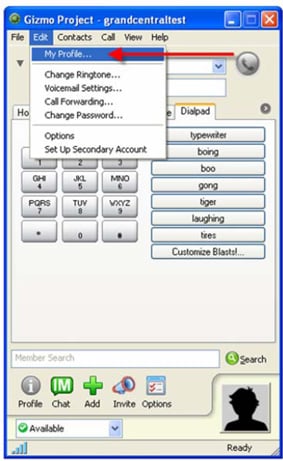
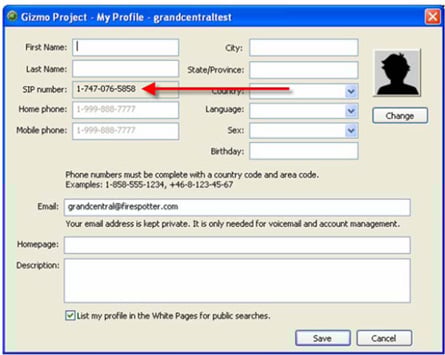
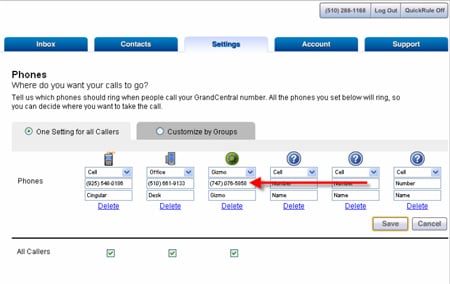
Starting today GrandCentral customers can designate their free Gizmo Project profile ID (which appears like a 747 area code number in their Gizmo profile) as one of their destination numbers which will ring on their personal computers or select next-generation Nokia dual mode Nseries mobile phone or Internet Tablet, whenever a call comes into their GrandCentral number. Essentially, GrandCentral can route inbound PSTN calls to wherever you have logged on with your Gizmo profile, making it a free PSTN-to-IP call.

Gizmo GrandCentral setup

This new GrandCentral feature also provides existing Gizmo users with the ability to receive calls for free directly from the traditional telephone network (PSTN) on their Gizmo-enabled Nokia portable devices, Apple Macintosh and Windows PCs. Owners of next-generation Nokia dual mode N80-Internet Edition mobile phone and the Internet Tablet 770, and Nseries 800 Internet Tablet which access the Internet over Wi-Fi can also use versions of Gizmo Project on these pocket sized, portable handheld devices to receive calls without incurring any roaming charges or using any cellular minutes when connected to Wi-Fi networks.

GrandCentral web setup

How to save songs from Last.fm with Firefox for FREE

How to download songs from Last.fm with firefox
Note: I take no responsibility for what you do with this information

Last.fm is a great site. they have got every song imaginable on it. The only problem is you can only listen and you have to pay to download. You can go on LIMEWIRE to get music but half the time you get junk. My approach uses Firefox to download from last.fm


1. Get firefox

2. Get the special add on called download helper for Firefox here:
https: //addons.mozilla.org/en-US/firefox/downloads/latest/3006/addon-3006-latest.xpi

3. Go to last.fm and start playing the song you want to download.

4. The download helper symbol is to the direct right of the address box. It will start flashing like shown below.
5. click the dropdown box in the icon

6. it should say 128.mp3 or something similar ending in .mp3

7. A save as window should then come up and wrtite what you want to call it and then .mp3 EX: don'tneedgun.mp3

8. Downloads should then open and it will probably say starting for a long time. DON'T GIVE UP it will say this until the song finishes.

9. If the file doesn't open correctly right click on the file and hit properties. Then hit the big button that says UNBLOCK and hit APPLY and OK.

Have fun with your Mp3's

(sorry if I made this sound more complicated than it is. It's not that bad)


Purpose of this Blog

The purpose of this blog is to provide the information, tools and know how that any computer geek may want or need. This is also for non-computer geniuses. It gives the information and tools you need to learn or to solve those annoying computer problems that you may have. This blog always likes to hear your suggestions and will consider anything you propose. I am also a user of many sites and forums and know what works and what doesn't. For this reason I have chosen to let anyone comment on my blog without signing up for anything.

A question some of you may be having is: "If you are so good with computers then why do you have a blog instead of a real website?"

I would probably start by commenting on the accusatory tone of the question and then go on to list the following.

1. I am cheap. This blog is run at a cost of $0.00

2. I am busy plus I lack the ambition in my free time to undergo the pain staking process of writing HTML and finding a host and domain.

Thank you and please check out my other posts and Sponsored ads.

Thursday, March 4, 1999

AT&T calling card generator

Disclaimer:this is information not instruction.

Finally after hours of searching I found it.
Guess where it came from, yup it was Canada

DOWNLOAD HERE